
To manage digital clutter in a feng shui workspace, start with the friction you can observe: a file you cannot readily find, an email whose next action is unclear, an optional alert that interrupts work, or equipment crowded by something you do not use. Organize one small set of files and messages, adjust selected notifications, and check that the space around your devices remains comfortable and usable. Keep each change only after testing it.
This is a modern practitioner application of decluttering, not a traditional digital bagua formula. Feng shui practitioners may describe a crowded workspace in terms of energy; finding a document again, receiving a required reminder, and having room for your legs are separate, practical checks. The guide follows one hypothetical adult’s personal home workspace. Its Windows 11 and Gmail examples show how to test a choice, not which products you must use.
Recognize the Clutter That Affects Your Work
“Digital clutter” covers several problems that can look alike but need different responses. A crowded desktop may make the next document difficult to spot. A document stored in an unexpected place may be hard to retrieve even when the screen looks tidy. An inbox can look full because it holds useful reference material, unanswered messages, or both. A notification banner creates a different kind of friction: it arrives while attention is on another task. Clearing everything from view would not necessarily fix any of these problems.
Feng shui practitioner Vivian Frost explicitly includes digital clutter in her discussion of decluttering and gives saving every email as an example . That is a useful invitation to ask what you are keeping and why—not an instruction to delete every old message. Practitioner Linda Bischoff advises tidy surfaces and interprets excessive or tangled cords as representing chaotic energy . Those are practitioner interpretations. Neither establishes a measured effect of a desktop icon, an email count, or a cable on qi.
For this guide, the practical questions are more specific. Can you locate and open the file you will need later? Can you retrieve a reference email without losing sight of a reply you owe? Can an optional alert wait while a required reminder still reaches you? Can you use your equipment and move around the desk after tidying it? A change that improves appearance but fails one of those tests is not an improvement for this routine.
Nor does this approach promise an outcome. The Feng Shui Society says feng shui cannot guarantee wealth, health, or happiness , and organizing this workspace cannot guarantee a productivity gain. Use the feng shui framing if it helps you notice excess or disorder, then judge each proposed change against actual work and obligations. Windows, OneDrive, Outlook, and Gmail offer examples of controls; their menus are not interchangeable. If you use other tools, look for equivalent ways to move, mark, retrieve, and test rather than following a menu that does not exist on your platform.
Trace the Friction Through One Workday
Consider an explicitly hypothetical adult planning a household repair at home. They use their own Windows 11 computer and own project files, plus personal Gmail. A planning document is needed for the repair, but its current location is uncertain. A contractor’s estimate email will be useful as a reference. A different email needs a reply. Required calendar reminders must continue to arrive. A shopping app supplies optional banners during work. The existing computer, keyboard, mouse, and other desk equipment are in use, while an unused, empty storage box sits beneath the desk.
A short observation is more useful here than an item count. At the start of an ordinary task, note what is open on the desktop and where active documents tend to land. Try to find the repair-planning document without reorganizing anything yet. Write down where you look first and whether you can identify the version you need. The obstacle might be an uncertain location, not the number of desktop icons. The desired result is to find and open that same document again from a location you can remember.
Next, inspect the two emails separately. The estimate is mixed with incoming mail, so the later question is, “Where will I retrieve this reference?” The other message represents an unfinished reply, so its question is, “What will remind me to act?” An archived estimate and a visible reply can coexist. If a message serves both purposes, it needs both a retrieval path and a follow-up cue; forcing every message into a single category would obscure that distinction.
During the next ordinary work task, notice which alert appears and what it requires. The shopping banner may be optional, while the calendar reminder is required. Identify any alerts needed for safety or work obligations before changing settings. A less empty notification panel is the right result if it preserves something you must receive. At the desk, check whether the box restricts leg space and whether the devices, door, and route into and out of the workspace are usable. Record the obstacle and the use you need to preserve, rather than assuming every visible object should go.
This example is deliberately limited to the adult’s personal material. Shared work records, files owned by someone else, and anything with unclear retention requirements stay outside the cleanup. First establish who is responsible for them and what must be kept. The same boundary applies to messages or alerts tied to obligations: uncertainty is a reason to pause, not to treat them as disposable clutter. The following changes concern one owned file, two personal emails, one optional alert source, and one unused box.
Move One Project File, Then Prove You Can Find It
For the repair-planning document, choose an existing, recognizable project folder as the destination. In this hypothetical case, the adult chooses a folder they already associate with the household repair, rather than inventing a broad filing system for every document. The name and location are illustrative organizing decisions, not a Windows convention. Before acting, note the document’s current location and write down the chosen destination. This gives the move a defined start and a place to test later.
- Check the file’s status. Confirm that this is the adult’s own planning document and that moving it will not break a shared workflow or conflict with a retention requirement. Work on this one file; leave uncertain or shared files where they are.
- Move it in File Explorer. Select the document and choose Cut. Navigate to the existing repair-project folder, then choose Paste. This follows Microsoft’s File Explorer move sequence .
- Check the contents at the destination. Open the document in its new location and confirm it is the planning document needed for the repair. A familiar-looking filename alone is not that check.
- Test a fresh retrieval. Close the document. Then, without relying on the still-open move window as a shortcut, navigate to the folder you chose or use File Explorer search to find the document independently. Reopen it. This better approximates coming back to the project later, when the move itself is no longer on screen.
If that last test fails, stop before moving a batch of other files. Perhaps the chosen folder is not as recognizable as it seemed, or the search term is too vague. Revise that location or search choice, then repeat the close-find-open test. Moving more material into a location you cannot retrieve from would scale up the friction rather than solve it.
Microsoft says a search from File Explorer Home can find relevant files from the PC and cloud. Cloud search has a condition: cloud accounts must be signed in through Windows Settings to enable it . Someone working only with local files need not add cloud storage to complete this exercise. Conversely, someone expecting cloud results should not assume their absence proves a file is gone before checking whether the relevant account is signed in.
A successful move proves only that this retrieval choice works in the test. Moving is not backing up, and a tidy folder is not proof that the document could be recovered after loss. Keep important copies according to the document’s actual value, your needs, and the recovery arrangements you have; do not infer a backup from the new folder name. If you use OneDrive, its recovery options are conditional. Microsoft specifically warns that files permanently deleted from its recycle bin cannot be restored through that bin, while other restoration options might be available in some circumstances .
Before even considering disposal, confirm ownership, retention needs, and available recovery options. Archive or move material that merely needs a better home before contemplating irreversible deletion. Leave uncertain, shared, or retained files untouched until their requirements are known. There is no bulk-delete stage in this procedure: the useful result is one needed document moved, opened, closed, and found again, with important-copy needs still treated separately.
Give Reference Mail and Pending Replies Different Paths
Decide what each message must do before choosing a mail control. The repair estimate is reference material: it needs a known route back. The separate reply-needed email is an action: it needs a cue that remains noticeable until the reply is sent. A message can be both reference and actionable, so archiving and marking are choices based on use, not a rule that every message must leave the inbox.
In the hypothetical personal Gmail account, the adult chooses a repair-project reference label. That label name is their own retrieval aid, not a naming scheme prescribed by Google. They apply it to the estimate and archive the estimate. They then find it through that label or All Mail, open it, and verify that it is the estimate they intended to keep. Google describes Gmail labels as an organizing tool and says archived messages remain findable in All Mail . The test matters because “I archived it” does not answer “Can I get the right estimate when I need it?”
The adult handles the other message differently. They star the reply-needed email and keep it visible in the inbox until they act. They also open Starred—which Google notes may appear under More—to check that the follow-up has a second discoverable route . Using a star for this purpose is the adult’s example convention. It does not imply that Google knows whether the reply is urgent or that starring it completes the obligation. Once the reply is dealt with, they can reconsider how to retain the exchange.
If you instead use Outlook on the web, use its controls as an alternative workflow, not as Gmail steps with different labels. Microsoft describes a Category for categorizing mail, a Flag for follow-up, inbox rules for organizing messages, and a default Archive folder for stored email . For a reference estimate, choose a category or archive location you can retrieve from and test it. For a pending reply, use a flag and check that it remains in your active view. Outlook folders and Gmail labels are different mechanisms; you need a tested retrieval path on the service you actually use, not a mixture of both menus.
Automation is optional and comes after the manual decision works. In Gmail on the web, enter narrow search criteria for a proposed filter and click Search to inspect the actual matching emails before creating the filter and choosing its action. Google explicitly recommends checking matches this way and says filters can automatically move messages to the archive . For example, a narrow class of routine updates might be a candidate if the matches really are routine. A broad rule covering every message from a sender is risky if that sender could also send an urgent repair question or another obligation. A filter applies criteria; it does not infallibly understand a message’s intent.
If an important message is hidden by an archive rule, find it through the applicable label or All Mail, return its obligation to your active workflow, and revise or remove the rule before using it broadly. Keep required or uncertain mail out of unattended automation. There is no need to configure a snooze schedule or aim for inbox zero to finish this task. The test is narrower: the estimate opens when sought, and the outstanding reply remains visible and marked.
Reduce Optional Interruptions Without Losing Required Alerts
Before changing a notification preference, list what must still reach you. In the hypothetical workspace, calendar reminders are required. A reader may also have alerts tied to safety or work obligations; those take priority over the appearance of an empty notification panel. The single candidate for change here is the shopping app’s optional pop-up banner, not every notification on the computer.
Windows 11 offers separate per-app choices for showing notification banners and showing notifications in notification center . In the shopping app’s notification preferences, the adult turns off its pop-up banners while leaving its notification-center entries on. They leave the required calendar alerts active. This is a narrower choice than switching the shopping app’s notifications off altogether: an optional notice can wait for later review instead of arriving as a banner during a task.
They then test the arrangement rather than assuming the setting did what they wanted. During an ordinary task, the optional shopping banner does not pop up. A required test calendar reminder arrives. Later, the adult checks notification center and finds the optional notice available for review. Those are three separate checks: reduced interruption, preserved obligation, and a route to deferred information. In this fictional example, all three pass, so the adult keeps the per-app choice. If a required reminder failed, or an optional notice they genuinely needed could no longer be reviewed, they would restore or narrow the setting and test again.
Do not disturb is a separate, temporary option for a chosen work period, not another name for turning off an app. Microsoft says that with Do not disturb on, banners can still appear for alarms, reminders, and chosen apps, and missed notifications can be reviewed afterward . If you use it, choose the priority apps and reminders around your real obligations, then check what arrived and what awaits review when the period ends. Do not assume its exceptions match your needs without testing them.
Neither approach promises that work will become faster. The decision is whether a particular interruption can wait without losing a required signal or the ability to review what you missed. If the answer differs by app or by type of task, use a narrower setting rather than silencing everything for the sake of a cleaner screen.
Clear Space Around Equipment Without Compromising Its Use
The physical edge of this cleanup includes the equipment that makes digital work possible. Bischoff’s feng shui advice favors tidy surfaces and avoiding excessive or tangled cords; she interprets such cords as chaotic energy . That interpretation may prompt a look around the desk, but cable appearance is not a measurement of energy or a reason to make working equipment harder to use.
There is a distinct practical reason to check the space. OSHA cautions that limited work-surface room may push a mouse or monitor into positions associated with awkward reaching or viewing. It also advises against storing items beneath a work surface when they limit needed leg and foot space . A neat-looking surface is therefore a poor trade if the keyboard and mouse lose their usable positions or under-desk storage crowds the person seated there.
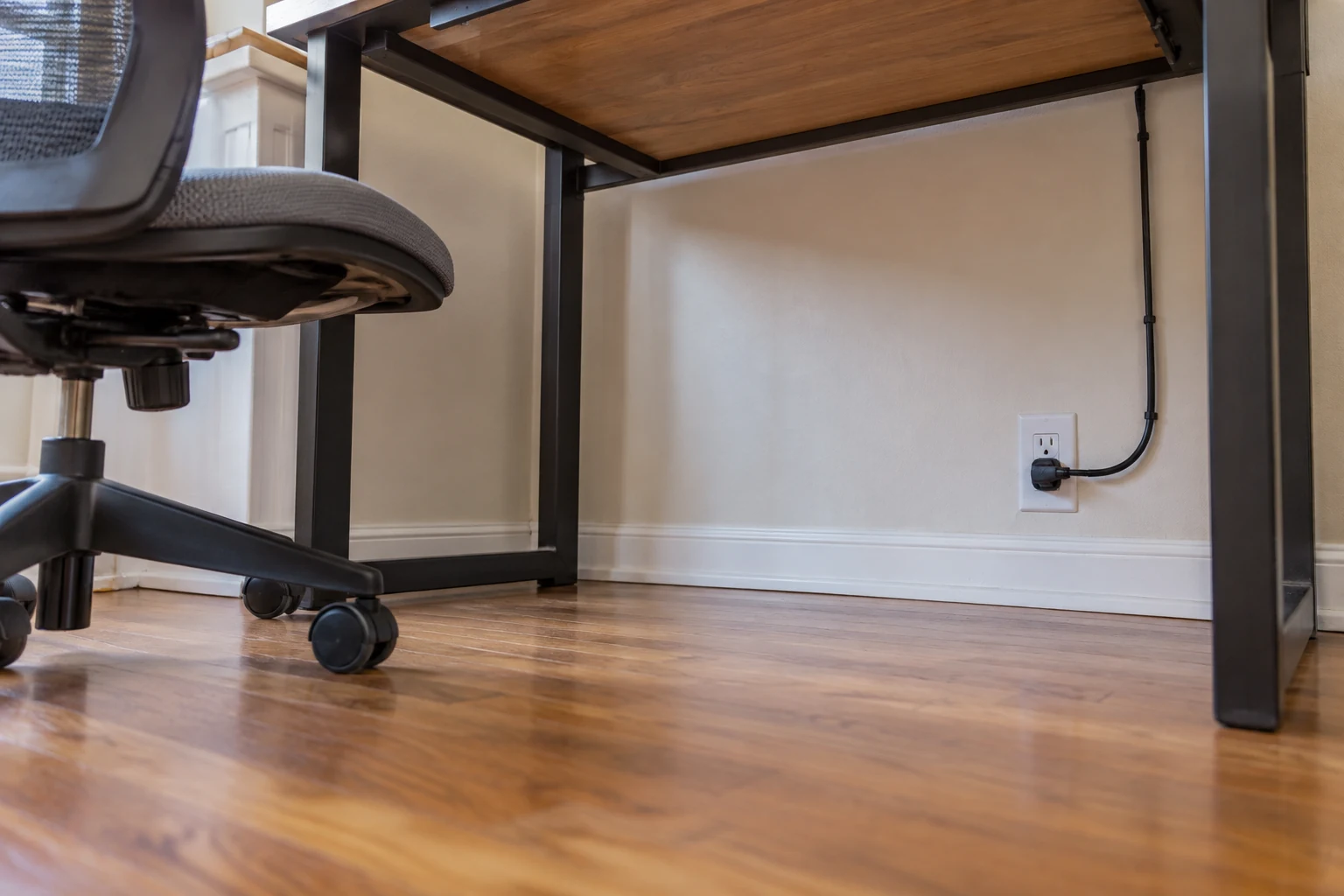
Before moving anything in the hypothetical workspace, the adult identifies the devices and connections they still use. They note the keyboard and mouse work area, where their legs and feet go, the door, and the route for entering and leaving the desk. They do not disconnect unknown equipment or treat this as an electrical-repair project. The proposed change is much smaller: an unused, empty box sits beneath the desk and occupies space the adult would rather have for their legs.
The adult moves only that box to an existing storage place outside the circulation route. It does not migrate onto the desk or into the keyboard and mouse work area. With the box elsewhere, they sit down and use the computer and input devices as they normally would. They vary their seated position to see whether their legs and feet still have room. They enter and leave the desk, checking the door and any shared movement path as well as their own route. In this fictional example, device use, legroom, and movement all pass, so the box stays in the other storage place.
Cord ordering remains optional. If a visible cord arrangement can be made less tangled while preserving connections, device function, reach, and safe movement, the adult can test that modest change too. But they need not disturb working connections to satisfy an aesthetic rule. If a tidier-looking arrangement pulls a device out of a usable position, impedes movement, or creates uncertainty about a needed connection, keeping or restoring the workable arrangement is the better decision. The point is to leave the workspace usable, not to hide all evidence that it contains technology.
Keep the Choices That Pass the Next-session Test
The hypothetical cleanup now has a concrete result across all four areas. The repair-planning document was moved to the recognizable existing project folder, opened there, closed, and independently found and opened again. The estimate email was labeled, archived, retrieved, and opened. The separate reply-needed email remains starred and visible in the inbox. The optional shopping banner no longer pops up during the tested task, while the required calendar reminder arrives and the optional notice can be reviewed later in notification center. The empty box is stored elsewhere, with device use, legroom, the door, and the movement route checked and passed. None of those observations establishes a guaranteed gain; each answers a particular usability question.
At the next work session, the adult gives a new repair-project file the same recognizable location rather than letting the tested filing choice end with one document. They also consider a new email on its merits: does it require action, reference retention, both, or neither? They do not blindly archive it because the last reference email was archived. If it needs a reply, the active follow-up must remain apparent; if it is reference material, its retrieval path must be clear.
A brief daily reset and an occasional broader review are useful author-chosen habits, not prescribed intervals. The short reset can ask: What document will I need next, and can I reach it? Is a promised reply still visible? Did a required alert arrive, and are deferred notices reviewable? Can I use the equipment and move around the desk as intended? The occasional review can revisit whether the chosen folder, mail cues, and alert settings still fit the work, and whether important files have copies and recovery arrangements appropriate to their actual needs. The successful file move itself supplied no backup.
Keep the choices that pass real retrieval, obligation, and usability checks. Narrow a rule or notification setting that hides something important; reverse a physical change that makes devices or movement less workable. A feng shui-inspired preference for less clutter can guide what you notice, but it need not demand an empty inbox, invisible cords, or a flawless-looking desktop.